Convenience Store Digital Signage Ideas: 10 Uses and Best Practices
Explore 10 convenience store digital signage ideas for food-service menus, checkout promotions, daypart offers, and multiple locations, with practical tips for keeping content current.
Published August 5, 2026
By Vuubl Team
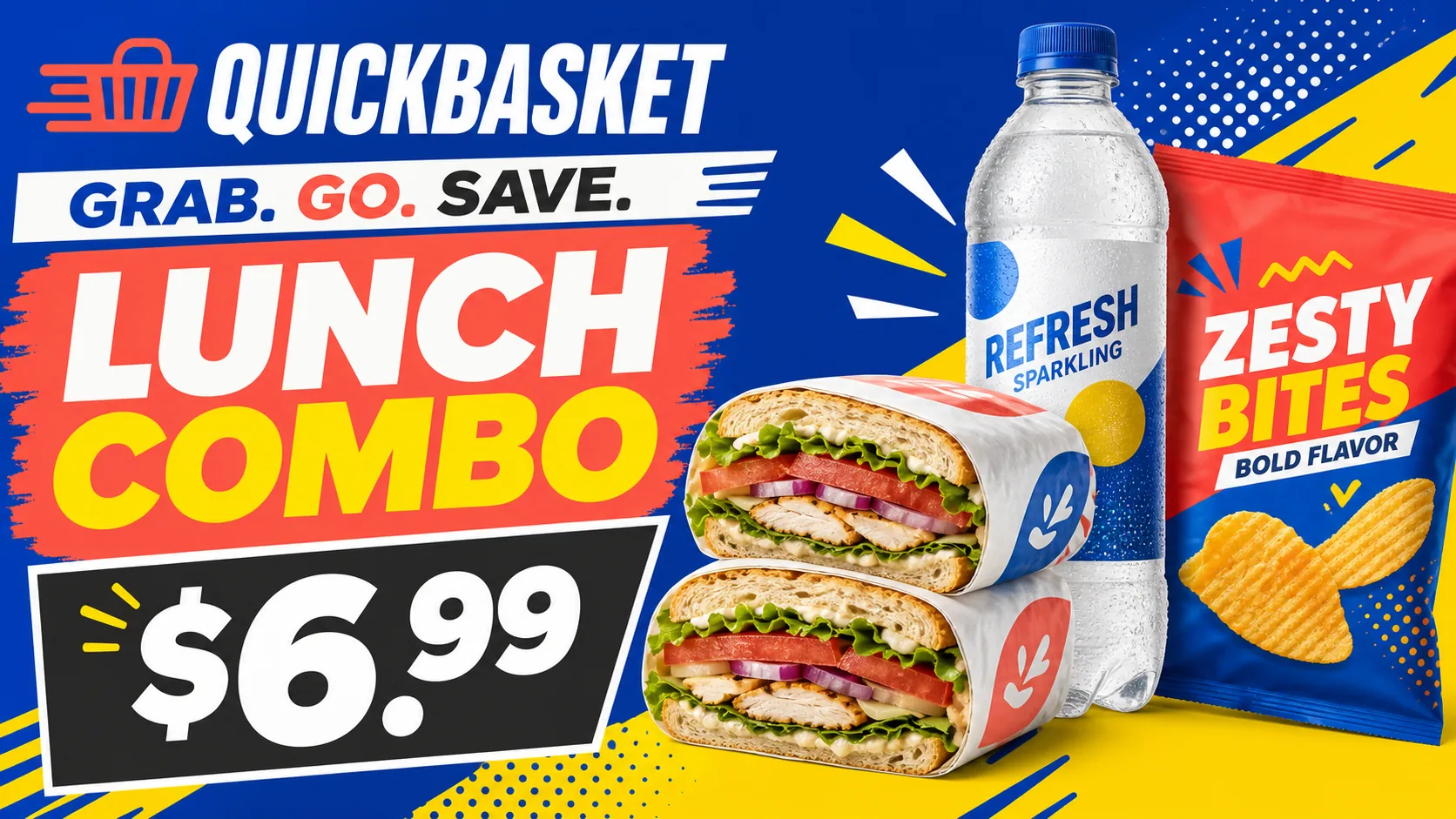
The best digital signage for convenience stores helps customers notice the right product, price, promotion, or instruction at the right moment. That might be a food-service menu near the counter, a drink offer by the cooler, or a short pickup message near checkout.
It is not just a matter of buying a bright screen. The best setup is easy to update, readable from the real viewing distance, flexible enough for different screen locations, and simple for staff to keep accurate across one store or several.
If you are comparing software for a convenience store, see Vuubl’s convenience store digital signage software for the product workflow, scheduling, and multi-screen features. For the step-by-step playlist setup, follow the digital signage playlist and scheduling guide.
If you are comparing digital signage options, prioritize:
- Remote updates for prices, promotions, menus, and store notices
- Scheduling for dayparts, seasonal offers, and expiration dates
- Different playlists or layouts for different screens and locations
- Support for the browser or Android TV hardware you plan to use
- A clear workflow for review, publishing, and checking the physical screen
Here are 10 practical ideas, followed by the design and management practices that make them useful.
1. Food-service menu boards
If the store sells hot food, sandwiches, pizza, prepared meals, or made-to-order items, use a screen to present the food-service menu clearly. Show categories, item names, prices, combinations, and any ordering instructions customers need before reaching the counter.
Keep the primary menu focused. A customer should not have to wait through several slides to compare two items or find a price. If the menu is large, use coordinated screens with clear roles—for example, one for hot food, one for drinks and combinations, and one for limited-time offers.
Link the menu to the actual kitchen and inventory process. If an item sells out regularly, prepare an alternate slide or a simple update procedure before launch.
2. Coffee, fountain drinks, and bundled offers
Coffee, fountain drinks, frozen beverages, and snacks are often purchased alongside a main item. A screen near the beverage station or food counter can explain sizes, flavors, bundles, and current offers without taking over the primary menu.
Use a consistent format for the item, price, size, and offer terms. If a promotion depends on a specific time or product, make that condition visible. Avoid showing an attractive bundle that staff cannot fulfill during the scheduled period.
3. Checkout and impulse-purchase promotions
Checkout is a natural place for short, high-priority messages. Use digital signage to highlight a limited-time snack, a seasonal drink, a loyalty reminder, or a relevant add-on while customers are waiting.
Keep the message short enough to understand in a few seconds. Show the product, the price or offer, and the next step. Rotate a small number of messages rather than filling the screen with every possible promotion.
Give each offer an expiration date. An expired checkout promotion can create confusion and make staff spend time explaining what should have been removed.
4. Entrance and seasonal messaging
An entrance display can orient customers to the store’s current priorities. Use it for seasonal products, holiday hours, a new food-service menu, weather-relevant items, or a short welcome message.
The entrance is usually a quick-glance environment, so use one headline and one clear visual. Do not put the full menu or a dense product catalog at the front door. Link the message to what shoppers can find next inside the store.
5. Loyalty-program and app enrollment prompts
Digital signage can explain how customers join a loyalty program, use a store app, receive a digital coupon, or sign up for a recurring offer. Make the action obvious and keep the steps brief.
If the customer must scan a code, test it from the expected viewing distance and brightness. Provide a short fallback such as a recognizable app name or a counter instruction in case the code is difficult to use. Change the message when the offer, enrollment flow, or terms change.
6. Forecourt and fuel-area information
Stores with appropriate outdoor or forecourt displays can use them for fuel-related notices, car-wash offers, store hours, food-service reminders, or directions to an entrance. Outdoor placement requires different brightness, weather, mounting, and visibility considerations than an indoor screen.
Keep the message legible from the distance and speed at which customers encounter it. Do not depend on fine print or fast animation. If a display is governed by local rules or a fuel-brand agreement, confirm the permitted content before publishing.
7. Daypart menus and time-based promotions
Convenience stores often have different priorities in the morning, afternoon, evening, and late night. Schedule coffee and breakfast content early, lunch and prepared food during the midday period, and evening or overnight offers when they are relevant.
Build schedules around actual store operations rather than generic times. Confirm the store timezone, kitchen availability, weekend changes, holidays, and the default content outside scheduled periods. A schedule should never leave a blank screen or advertise an unavailable item.
Prepare a review calendar so someone can check upcoming promotions before they go live. Automation removes repetitive switching, but prices and availability still need human approval.
8. Consistent signage across multiple locations
For an operator with several stores, digital signage can keep approved brand content consistent while allowing local details to differ. Central content might include brand templates, seasonal campaigns, or a company-wide offer. Local content may include store hours, regional prices, inventory, or location-specific promotions.
Use clear names for locations, screens, playlists, and schedules. Confirm the assignment before publishing a change to several stores. A shared template should make updates easier without forcing every location to display the wrong price or operating hour.
Roll out major changes to a small group of screens first. Check the physical result, then apply the approved version more broadly.
9. Community, event, and service announcements
Some stores serve as neighborhood destinations or pickup points. A screen can display a local event, delivery or pickup instructions, a store-service notice, or a temporary message about changed access.
Keep these announcements factual and time-limited. Give them an owner and an expiration date so a notice does not remain after the event or service change has ended. Use the same visual hierarchy as promotional content so customers know what kind of message they are seeing.
10. Queue, pickup, and operational guidance
Digital signage does not have to sell something on every slide. It can explain where to wait, how to pick up a prepared order, which counter handles a service, or what customers should have ready. Clear guidance can reduce repeated questions when a store is busy.
Use the screen closest to the relevant action. A pickup instruction belongs near pickup, not on a general entrance display. Update the message whenever the layout, counter, process, or ordering method changes.
Choose the right ideas for your store
Start with the customer moment that creates the most confusion or the product category that changes most often. Then choose one screen location and one measurable job:
- Help customers choose a food-service item
- Promote a seasonal or time-sensitive offer
- Reduce repeated checkout questions
- Explain a loyalty or pickup process
- Keep a multi-location campaign consistent
Avoid launching every idea at once. A simple screen with accurate pricing and a dependable update workflow is more useful than a large set of slides that no one reviews.
Design best practices for convenience store digital signage
Customers may see the display while walking, waiting, or standing in bright lighting. Design for fast scanning:
- Put the product, price, and key condition in predictable places.
- Use strong contrast and enough spacing around essential text.
- Keep each slide focused on one message or closely related group.
- Use real, accurate product images rather than generic visuals.
- Limit animation so movement does not compete with prices and instructions.
- Keep brand colors and category labels consistent across screens.
- Test the smallest text at the actual viewing distance.
Do not make a screen carry the entire product catalog. Give customers a reason to look, then make the next action obvious.
Manage the content as an operating process
The first design is only the beginning. Assign an owner for prices, promotions, store hours, and service instructions. Keep approved templates and product assets in a shared location, and name content by location, purpose, daypart, and revision when useful.
Before publishing, verify:
- The content is assigned to the correct store and screen.
- Prices, dates, availability, and offer terms are accurate.
- The schedule has the correct timezone and end time.
- A default message exists outside scheduled periods.
- The physical screen displays the update as expected.
For a broader introduction to signage planning, read Digital Signage for Small Business. For product-specific restaurant menu planning, see How to Create a Restaurant Digital Menu Board.
Measure whether the signage is helping
Measure operational and customer signals instead of assuming a promotion caused a particular result. Useful starting points include:
- Time required to publish a normal price or promotion update
- Frequency of expired or incorrect content on screens
- Customer questions about menus, offers, hours, or pickup instructions
- Staff feedback about whether the screen helps during busy periods
- Performance of a promotion compared with a similar period or offer
- Screen uptime and recovery time after a player, power, or network issue
Review the results monthly. If customers do not notice the message, improve placement or hierarchy. If staff avoid making changes, simplify the approval workflow. If a promotion cannot be evaluated, define the expected action and comparison before running the next version.
Common mistakes to avoid
- Buying hardware before deciding what the screen needs to accomplish
- Using small text because too many products were forced into one layout
- Showing an offer without an expiration date or clear terms
- Scheduling content without checking actual store and kitchen hours
- Publishing company-wide updates without checking local prices and availability
- Using outdoor displays without considering brightness, weather, and viewing distance
- Letting one person become the only source of menu and promotion updates
- Treating digital signage as a replacement for a complete website or staffed service process
Manage convenience store digital signage with Vuubl
Vuubl helps small operators manage content across browser and Android TV players from a central workspace. The basic workflow is:
- Create a Vuubl account.
- Open the browser player or install the Android TV player on supported hardware.
- Upload menu images, promotional graphics, videos, and announcements.
- Build playlists or layouts for food service, checkout, entrance, and other screen roles.
- Assign different content to individual screens or locations.
- Schedule recurring daypart, seasonal, and promotional changes.
- Publish, check the physical displays, and refine the workflow based on staff feedback.
Explore digital signage for convenience stores for the industry workflow, how Vuubl works for the product process, or Vuubl pricing for current per-screen plan details. The player setup guide covers available player options.
If you are deciding whether an existing TV or player can handle your first screen, ask about the Vuubl founding customer pilot for hands-on setup and a real-world test before you expand.
Start with one store and one clear job
The best convenience store digital signage system is easy to understand, easy to update, and accurate when customers need it. Start with one location and one high-value use case, such as a food-service menu or checkout promotion. Test the display in its real environment, assign ownership, schedule only predictable changes, and expand after the team trusts the process.
Start your first Vuubl screen free for 30 days, with no credit card required.